Pick one product and one exact variant a shopper can buy. Check that the page answers the shopper’s questions, then compare the selected option, item price, currency and stock across the product page, structured data, feed and cart. Use the same checks on your next product.
Run the product page checklist
Record the product name, SKU, exact variant URL and preferred product URL. Use a fresh browser session for the selected link and a phone for the purchase path. Keep the matching Merchant Center row handy if you use a feed. Mark each check as you go and record the date and what you observed.
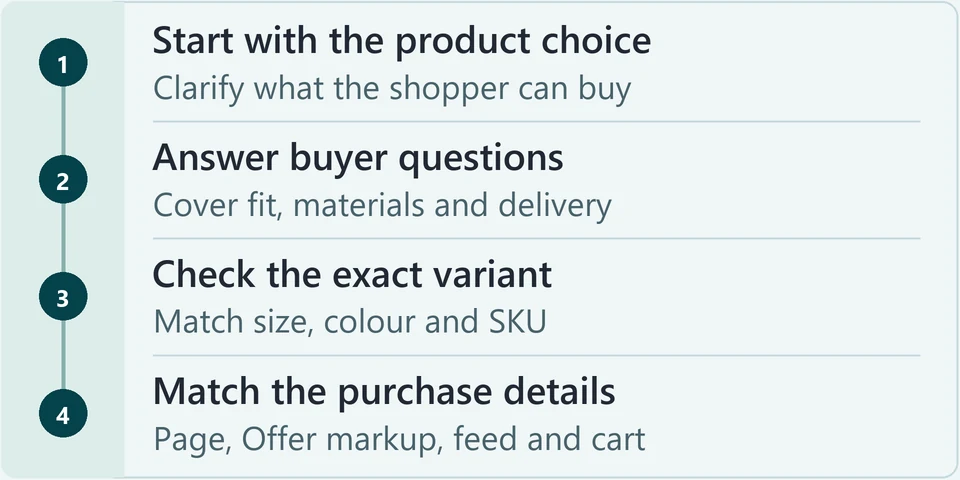
A collection helps shoppers compare a range. A product page helps them evaluate a specific model and its available options. Search one category phrase and one precise model or variant phrase. Note the types of pages that appear. Open your preferred product URL and check that it loads, permits indexing and has the intended canonical. Use the storewide e-commerce SEO guide when mapping queries across collections and products. The product page fits the model query where the results support that choice. A relevant collection covers the broader range. The preferred product URL returns 200 and has no unintended indexing block or conflicting canonical. Correct unintended blocking or canonical settings on the preferred product page. If shoppers are comparing a range, give that task to the collection and link to the product from it. The HTML title and search description shape how the page is previewed in search results. The visible H1 confirms the shopper has reached the right item. Buyer details answer the questions that decide a purchase. Compare the HTML title, search description and H1. Check product details such as dimensions, size system, materials, care, compatibility and included items where they affect the purchase. Shopify’s SEO field guidance shows where to edit the search fields. The title names the model and product type naturally. The H1 clearly names the product. The copy combines verified facts with original detail a shopper can use, and it contains no claim the store can't support. Replace a vague title with the model and product type. Keep accurate manufacturer specs. Add original details you can verify, such as how the size chart works or what arrives in the box. Images help shoppers judge colour, scale and detail. On a phone, the main product image often fills much of the first screen. Slow or confusing media can interrupt the purchase. Open the variant URL on a phone. Check that useful product photos show the selected colour, scale and details. Inspect alt text, choose a size, and add it to the cart. If the page loads slowly, use a mobile performance test to identify its Largest Contentful Paint (LCP) element. The images show the selected colour accurately, and informative images have descriptive alt text. Image files are sized appropriately for the screen. The size and colour selectors, the price and the add-to-cart button are easy to use on a phone. Add useful missing photos, write descriptive alt text for informative images, and serve images sized for the screen. If the main product photo is the LCP image, make it load promptly and avoid lazy-loading it. Retest the page on a phone. Google’s image guidance explains image and alt text practices. Before they commit, shoppers need the selected option, price, currency, availability, delivery details and returns policy. When stock changes, the visible page, the structured data and the feed should all report the same state. Check the selected option, item price and currency, stock, delivery and returns. If the page shows reviews, confirm they are genuine. Check whether the item is in stock, temporarily out of stock, available to order later, or retired. Purchase information is easy to find. Stock agrees across the visible page, structured data and feed where those apply. Keep a useful page live during a temporary stockout and update its page, markup and feed. Show backorder or preorder when you accept orders and can give accurate timing. For a retired product, remove the feed item. Redirect to an equivalent successor, return 404 or 410 if you remove the page without a replacement, or retain useful support information with a clear retired label. See Google’s temporary stock guidance for a temporary change. Shoppers and search engines can arrive on a deep link to one colour or size. That link must open the right option. The canonical must point to the page you want treated as the main version. Open the exact variant URL in a fresh session. Check the selected colour and size, the image, the price, the availability and the add-to-cart button. Then view the rendered output and find the canonical tag. Google’s product variant guidance explains the single-page and multi-page variant patterns. The variant link loads the right option, image, price and stock. The purchase control reflects availability. In a single-page product group, the canonical points to the stable base product URL and the individual variants have selectable deep links. Fix variant selection in the theme if the link opens the wrong option or image. For a single-page group, use the base product canonical. For separate, useful variant pages, use Google’s multi-page variant pattern. Retest the URL and the rendered output. Collections and breadcrumbs lead shoppers to the product. If different paths produce different product URLs, internal links can disagree with the canonical and the sitemap. Open the product from each relevant collection. Follow the breadcrumbs back through the shopping path. Compare the product URL from links with the canonical and sitemap. Google’s e-commerce URL guidance covers URL consistency. Where applicable, collection links, other internal links, the sitemap and the canonical all point to the same preferred product URL. The breadcrumbs describe the usual shopping path. Update product links to the preferred URL and retain useful breadcrumbs. If collection paths or app output conflict, our Shopify SEO services can review the theme, product paths and markup before a broader change. Structured data and a Merchant Center feed describe the offer to Google in machine-readable form. If either one disagrees with the page, the item can be flagged or the wrong details can appear. Find the selected variant and its Offer in the rendered Product or ProductGroup markup. Compare SKU or variant mapping, landing URL, item price, currency and availability with the visible page and feed row. Use the Rich Results Test for markup and Merchant Center diagnostics for the feed. The markup and the feed row identify the same variant. Both show the same price, currency and stock state as the visible page. Each variant has its own feed ID, and variants share an item_group_id where that applies. Correct the product admin, feed app or theme output that owns the incorrect value. Check overlapping apps if they publish conflicting markup. If the same mismatch appears across your catalogue, our e-commerce SEO services can review the store, structured data and feed together. The final check shows whether a shopper can order the same offer shown on the product page. After changes sync, reopen the exact variant link in a fresh session and add one unit to the cart. Compare the item price in the same currency and market. Account for tax and shipping separately. Review the latest feed row and Merchant Center diagnostics where applicable. Google’s price mismatch guidance explains how to investigate a flagged offer. The page, Offer and feed identify the same variant with matching price, currency and stock. The cart shows the same selected item and unit price, and the item is purchasable as expected. Record the date and SKU. Correct the source that still disagrees. Repeat the same test, record the result, and use Search Console separately when checking crawl or index status.Confirm product intent and the preferred page
Write a clear title, H1 and buyer copy
Check product images and the mobile path
Make purchase details and stock status honest
Test the variant URL and canonical
Check collection paths and internal links
Match product markup and feed to the visible offer
Retest the storefront, feed and cart
Save the product URL, SKU, issue and retest result in your audit notes before moving to the next variant.
Worked example: Ridge Trail Boot
The Ridge Trail Boot is a fictional product used to demonstrate the checks. The illustrative variant URL is /products/ridge-trail-boot?variant=100010 for Brown, US size 10, SKU RTB-BRN-10. The base canonical in this single-page group is /products/ridge-trail-boot.
- Before
-
The search title was “Boot,” the description was vague, and shoppers could not see the selected size next to the price. The page, Offer and cart showed CAD $159 for the selected variant. The feed row showed CAD $149.
- After
-
Set the search title to “Ridge Trail Boot | Waterproof Hiking Boot” and the H1 to “Ridge Trail Boot.” Sample copy could say “Brown Ridge Trail Boot, US size 10. Compare your measurements with the size chart before you order.” Put Brown, US size 10 beside the price, stock and add-to-cart control. Verify product features before making claims on a real store.
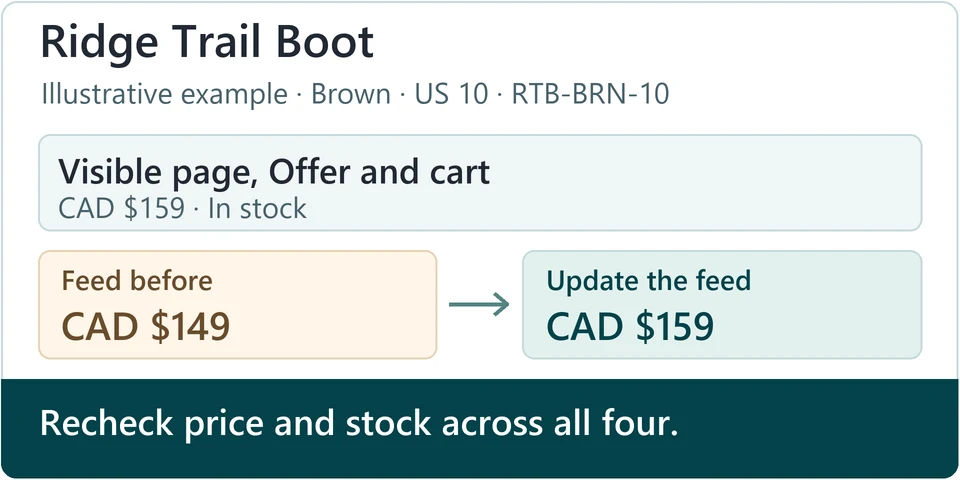
| Source | Before | After |
|---|---|---|
| Visible product page | CAD $159 | CAD $159 |
| Structured offer | CAD $159 | CAD $159 |
| Merchant Center | CAD $149 Mismatch | CAD $159 |
| Cart | CAD $159 | CAD $159 |
- Fix
-
Update the feed source for RTB-BRN-10 from CAD $149 to CAD $159. Keep the correct ID mapping and the exact variant URL. Wait for the new feed to sync.
- Retest
-
Check that the updated feed row shows CAD $159 and in stock. Open the same URL in a fresh session and confirm Brown, US size 10, CAD $159 and in stock. Read the relevant Offer and add one unit to the cart to confirm the same item and item price. Then review Merchant Center diagnostics after processing.
Product page SEO FAQs
Can I use a manufacturer's description?
Keep the manufacturer's accurate specifications, because rewriting correct facts can introduce errors. Then add verified detail that buyers need and the manufacturer's copy doesn't cover. That could be your sizing guidance, what's included, or care instructions you've confirmed. Judge the result by whether it helps a shopper decide.
Do colour or size variants need separate pages?
A shared product page can serve related colour and size options through variant links, with the base product as canonical. Use Google’s multi-page pattern when variants have separate, useful pages. In either case, test the exact link in a fresh session.
Why is one variant flagged for a price mismatch?
Open that variant's exact landing URL in a fresh session. Compare it with the structured Offer, the feed row and a one-unit cart, using the same currency and market. Find the surface that disagrees. Causes to check include a feed price that hasn't updated, a feed ID mapped to the wrong variant, and a variant URL that opens the default option at a different price. Correct the source, let it sync, then retest every surface.
What should I do if a product sells out temporarily?
If the page is still useful, keep it live. Show the out-of-stock state, and update the structured data and the feed so all three match. Point shoppers to available alternatives, or to a back-in-stock option if your store has one. Show backorder or preorder only if you genuinely accept orders and can state accurate timing.
What if the product is permanently discontinued?
Your choice depends on the situation. If there's a genuine equivalent successor, redirect to it. If the product is removed and has no replacement, return a 404 or 410. If owners still need information about it, such as care or setup details, keep a support page that clearly says the product is retired. In every case, remove the retired item from the feed.
Can a product appear in multiple collections?
Yes. Use one consistent product URL in every collection link so that internal links, the sitemap and the canonical agree. Keep breadcrumbs that reflect the relevant shopping path. If your theme generates collection-based product URLs, confirm what it actually outputs before you change anything across the store.
Why is mobile still slow after compressing photos?
Use a mobile test to identify the actual LCP element and compare lab results with field data if available. Optimize the image or other resource that the test points to, then repeat the test.