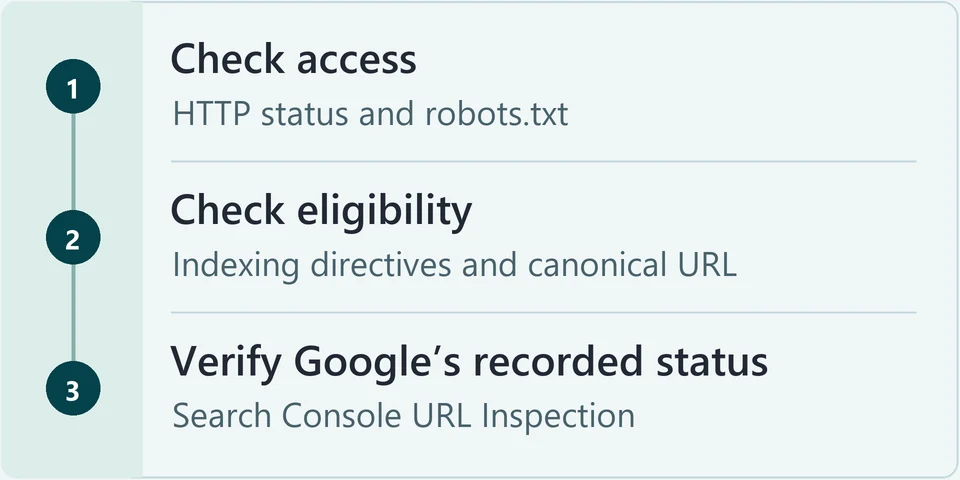
Start a technical SEO audit with a few important URLs. Check whether Google can fetch each page and whether it is eligible for indexing. Then record what Google currently reports in Search Console. Fix the issues you can verify and retest the same URLs.
- CrawlCan Google fetch the page?
- EligibleCan the page be indexed?
- IndexedDoes Search Console show it in Google’s index?
Run the technical SEO checks
Choose your homepage, a key service page, and one other important template such as a blog post or location page. Check each URL and record the evidence. Mark a check Needs a fix if you find a verified issue on any page in your sample. Use a browser, Google Search Console and PageSpeed Insights. A crawler can help with internal links. If several pages share an affected template, check more pages built on that template.
A fetch failure can stop Google from reading the page and its indexing directives. Open the exact URL in your browser’s Network panel or an HTTP status checker. Record the redirect hops and final status. Open robots.txt on the same host and check whether Googlebot can fetch the final path. A public page intended for search resolves to the intended page with HTTP 200 and can be fetched, as described in Google's technical requirements. A URL you deliberately moved or retired returns its planned redirect, 404 or 410 instead. Investigate login walls, unintended robots.txt rules, 5xx errors and redirect loops first. After the fix, recheck the final status and robots.txt. For pages intended for search, also run a live test in URL Inspection. A page can be reachable and still be excluded. Google's record can also lag behind the live page. In URL Inspection, record Google’s indexed result and last crawl date. Check the live page’s robots meta tag and the HTTP X-Robots-Tag header. Use Test Live URL to see how Google can fetch and process the current version. Intended pages have no unintended noindex. Record the indexed result on a separate line. “URL is unknown to Google” indicates Google has no record of the URL in that report. If Search Console says “Crawled – currently not indexed,” review the page and its signals before deciding what to change. Mark expected account or cart exclusions Intentional. Remove unintended noindex at its source, such as a plugin setting or server header. Ensure Googlebot can access the page and see the updated directive. Run the live test again and review the indexed result after Google recrawls. Canonical signals tell Google which of several duplicate or near-duplicate URLs you prefer. Find the declared canonical in the rendered HTML or the HTTP header. Then inspect the preferred URL and a variant, such as a version with parameters or without the trailing slash. Google's selected canonical comes only from the indexed result in URL Inspection, not from the live test. The canonical tag, redirects, internal links and sitemap all point to one preferred URL. Truly distinct pages are not canonicalized to each other. Nothing points to a staging site or an unrelated page. Align the conflicting signals using Google's canonical guidance, then recheck the source. Review Google's selected canonical again once a newer crawl date appears. A sitemap helps Google discover your preferred URLs. Being listed does not guarantee crawling or indexing. Open the sitemap index, then the child XML file that should list the page. Search for the exact preferred URL, including HTTPS and the trailing slash if that is the canonical form. Compare the live XML with your list of intended pages. The preferred URL you expect to list returns 200, is eligible for indexing and appears once. Sitemap URLs consistently use the intended HTTPS host and URL format. If an entry is missing or stale, work out whether the sitemap generator or a cache is at fault, and fix that layer. Rank Math's sitemap guidance covers caching. Reload the public XML to confirm the entry. Check Google's record separately. Crawlers and visitors find your pages by following internal links. Crawl from the homepage and compare the URLs found with a trusted inventory, such as your CMS page list. Check the crawl scope, then confirm the menu and contextual links use standard HTML links with an href, per Google’s guidance on crawlable links. Each sampled priority page has a crawlable route. Internal links lead directly to the intended live destination. Update broken links at the source, even where a redirect exists. A service page that moved to an equivalent URL gets a permanent redirect. A retired service with no replacement returns 404 or 410. For an unlinked page, decide whether it still belongs, then add a contextual link. Recrawl to confirm. Content that fails to load on a phone, or for Google, may be missed. On a phone, read the key copy and use the menu and main links. In URL Inspection, view the rendered HTML and search for a distinctive phrase and an important link. The key phrase and link appear in the rendered HTML, and a visitor can follow the mobile path. Use the screenshot to investigate visible problems alongside the HTML. If the output differs, review failed or blocked resources and follow Google’s JavaScript troubleshooting guide. Then retest both the rendered HTML and the phone path. Slow or unstable pages frustrate visitors, so measure before you change anything. Run PageSpeed Insights on mobile first. Keep the 28-day real-user field data separate from the Lighthouse lab run. Note whether the field data covers this URL or the whole origin. Good field thresholds at the 75th percentile are LCP of 2.5 seconds or less, INP of 200 milliseconds or less, and CLS of 0.1 or less. If PageSpeed only shows origin data, record it as a site-level signal. Leave the URL-level field result unknown when there is insufficient data. Use the lab diagnostics to target one cause, such as an oversized hero image, then rerun the lab test. Field data reflects the change gradually across its 28-day window. Supported structured data can make a page eligible for certain search features. Run the Rich Results Test on pages that use supported markup. Compare each marked-up value with what visitors see, following Google’s structured data guidance. The applicable type has no errors and reflects visible facts. A passing test supports eligibility for the tested feature. Choose Intentional or N/A for pages without a relevant type. Correct the errors or mismatched facts in the plugin or template, then rerun the test.Status and crawler access
Index eligibility and recorded status
Canonical choice
Sitemap discovery
Internal links and missing URLs
Mobile and rendered content
Speed and Core Web Vitals
Structured data where applicable
Decide what to fix first
-
Blockers on priority URLs
Fix verified server errors, login walls, unintended robots.txt blocks and stray noindex tags on intended search pages first. Check how many important URLs share the problem. Mark cart, account and private URLs that are meant to stay out of search Intentional.
-
Repeated inconsistencies
Next, repair repeated inconsistencies in canonicals, sitemaps and internal links. Group them by root cause, so one setting or template change can clear many log entries. If the same issue spans a shared template or needs developer work, you can hand it off through our technical SEO services.
-
Confirmed experience improvements
Prioritize speed, mobile and structured data by the pages and users affected. A slow mobile service page that people use to get a quote deserves attention before a one-off lab warning on a low-priority page.
Worked example: a missing sitemap entry
We ran this audit on Mucha’s own site on November 12, 2026.
- What we found
-
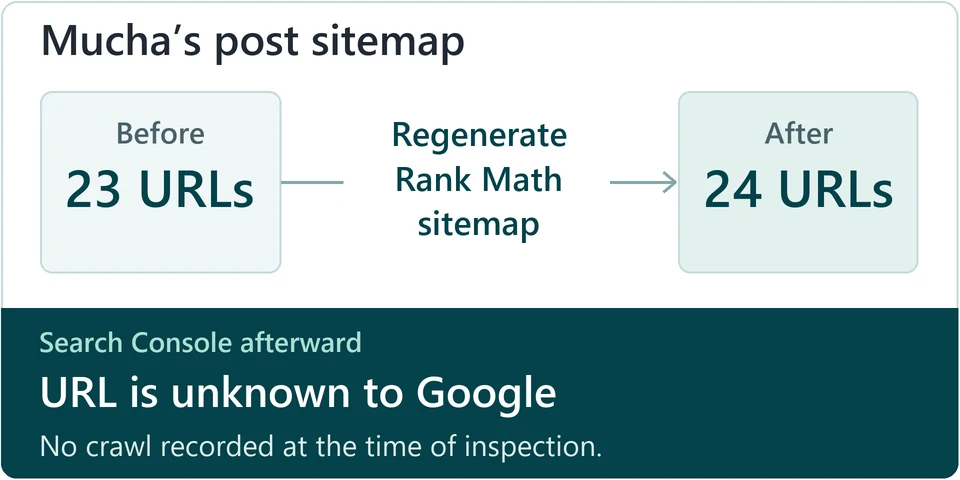
Our WordPress redesign checklist was live, but the cached Rank Math post sitemap listed 23 URLs and did not include the guide.
- What we changed
-
We refreshed Rank Math's sitemap cache by temporarily changing the Links Per Sitemap setting from 200 to 201. We then restored it to 200, so the final configuration matched the original.
- What we verified
-
We reloaded the public post sitemap. It returned HTTP 200 and had grown to 24 URLs, with the guide's exact URL listed once and no duplicate entries. The sitemap index still pointed to the post sitemap.
- What Search Console reported
-
In a separate check that day, Search Console reported “URL is unknown to Google,” with no recorded crawl.
Mark the sitemap check Pass once the live XML shows the expected URL. Keep the Search Console status open for a later check.
Record the fix and retest
For each issue, record the URL, observed evidence, source, priority, owner and what must pass on retest. Group repeated failures with the same cause. Assign the fix to the person who can make it, and change the status after repeating the original test.
| URL | Evidence | Priority | Suggested owner | Retest |
|---|---|---|---|---|
| /website-redesign-seo-checklist/ | The live post sitemap omitted the published URL. | Fix next | WordPress administrator | The URL appeared once in the XML. We recorded Search Console’s verdict separately. |
Technical SEO audit FAQs
Why is my page crawled but still unindexed?
In URL Inspection, compare the indexed result and last crawl with a live test, the rendered HTML and Google's selected canonical. Rule out blockers, duplicates and weak internal discovery. If none of these applies, record the status without assigning a cause you cannot prove.
Why did Google pick another canonical?
Google treats your declared canonical as a preference. Compare both pages and align the canonical tag, internal links, sitemap and any redirects with the preferred URL. Review Google’s choice in the indexed data after a recrawl.
Why isn't a published post in my sitemap?
Open the exact child sitemap and search for the canonical URL. If it is missing, confirm the post is indexable, then check the generator settings and any page or CDN cache. After the fix, reload the public XML to verify the entry, as in our example.
How do I find pages without internal links?
Compare a crawl from the homepage with a trusted URL inventory. For a missing page, check whether the crawler could reach the right host, path and rendered navigation. If an important page has no crawlable route, add a relevant link and repeat the crawl.
Why is mobile LCP poor when desktop is fine?
Mobile Lighthouse runs use different device and network settings, and the largest element may also differ. Compare the same URL on both devices, identify the mobile LCP element, and check whether the gap appears in the 28-day field data.
Why does the live test screenshot look incomplete?
The screenshot is often cropped, so it is not a full record of the page. Search the rendered HTML for an important phrase and link. If they are present, the content rendered. If they are missing, inspect the failed or blocked resources.
What should I fix first in a long audit report?
Group the findings by root cause. Then rank the verified issues by how many intended pages they affect and how much they matter to the business. Some warnings describe pages you excluded on purpose, so mark those Intentional or N/A instead of fixing them.