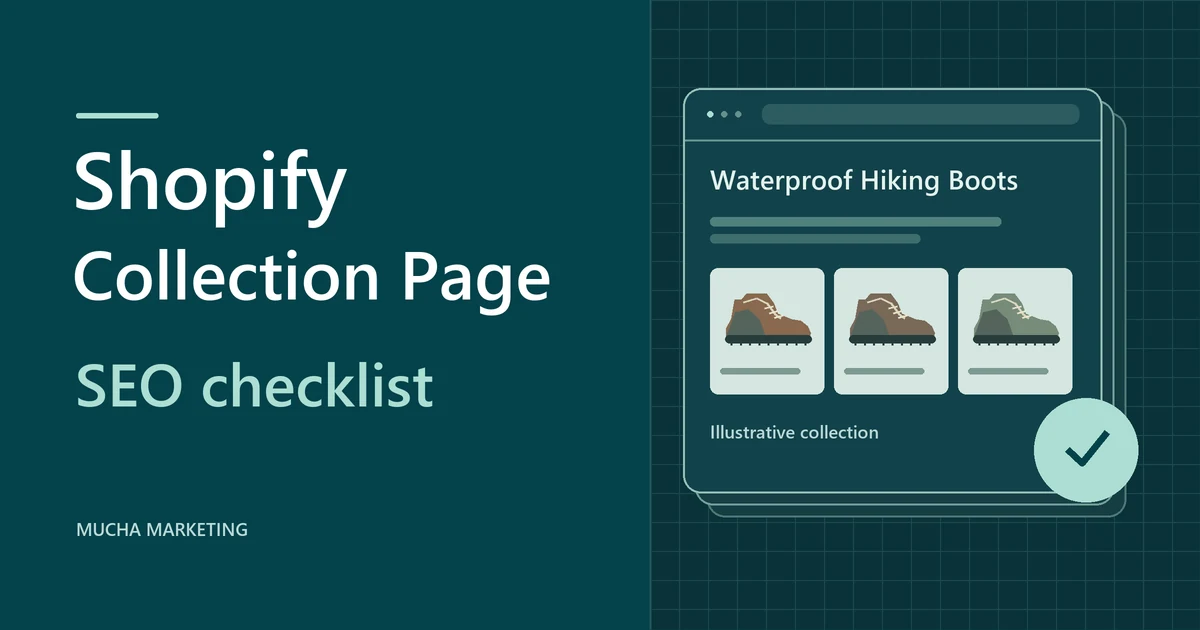
E-commerce SEO helps shoppers find the collection or product that matches what they’re looking for. Start with one important collection and three to five products you have in stock. Use that sample to find problems you can fix across the store.
Check whether people and search engines can reach the right pages. Then check that customers can select a variant, see the right price and complete checkout. Improve the content and shopping data on those pages before you apply the changes to another collection.
E-commerce SEO checklist
Pick one collection and a few stocked products. Tick each check as you complete it.
Choose the right page for each search
Match the page to what someone wants to do. A shopper looking for waterproof hiking boots needs a range to compare. Someone looking for one model needs that product’s details. A buyer checking boot fit needs advice before they choose. The examples below use a fictional Ridge Trail Boot.
- MenuShop hiking boots
- CollectionWaterproof Hiking Boots
- ProductRidge Trail Boot
Collection page
- Search
- waterproof hiking boots
- Example
- Sample title 'Waterproof Hiking Boots for Wet Trails | Store Name' and H1 'Waterproof Hiking Boots'. A short intro explains how to choose by waterproofing, weight and fit, and the product grid links to each model.
- Check
- Open the page from your navigation and check that its product tiles link to real product URLs. Include a short explanation of how to choose among the items. If two collections serve the same search, decide which one should be the main destination.
Product page
- Search
- Ridge Trail Boot waterproof
- Example
- Sample title 'Ridge Trail Boot Waterproof Hiking Boot | Store Name' and H1 'Ridge Trail Boot'. Attributes cover colour, size, width, upper material and membrane where verified, plus price, stock, shipping, returns and genuine reviews if available.
- Check
- Verify specs with the manufacturer or supplier. Open a variant and confirm that its details, price and availability match what the buyer sees after adding it to the cart. Add fit advice when you have support for it.
Buying guide
- Search
- how should hiking boots fit
- Example
- Sample title 'How Waterproof Hiking Boots Should Fit' for a sizing guide that answers the question and links to the collection and the Ridge Trail Boot where relevant.
- Check
- Use real questions from customers, reviews or search data to decide what the guide covers. A fitting guide can link to the collection when a reader is ready to compare options.
Build a visible path from the menu to the collection and from the collection to each product. Google does not use URL folder structure alone to work out store hierarchy. Ordinary links in the navigation, the product grid and the breadcrumbs show how the pages relate.
Store search and a load more button may not give crawlers ordinary links on their own. If the only route to the Ridge Trail Boot is searching the store or clicking to load more, add a normal link from the collection or from a real paginated page.
Genuine reviews and buyer questions can help shoppers decide whether a boot runs narrow or suits their use. If you add review markup, check that the reviews are visible and belong to the product shown.
Check crawl access, canonicals and indexing
Crawling means Google can fetch a URL. A canonical is the URL chosen to represent a group of similar pages. Indexing means Google has added a page to its index, where it can be considered for search results. In URL Inspection, the live test checks current access. The indexed report shows what Google previously processed and which URL it selected.
Use these URL patterns as examples. Your store may use different paths or parameters.
Base collection
/collections/waterproof-hiking-boots
Keep it indexable, self-canonical and linked from the main menu. This page should own the broad phrase.
Check. Run a live test for access and indexability. In the indexed report, check whether Google selected your intended collection URL and whether that page is indexed.
Size or colour filter
?size=10
Decide whether the filtered view serves a lasting shopping need. A useful combination may warrant a dedicated, linked collection. Group repetitive combinations by URL pattern before deciding whether to control crawling. A robots.txt block stops Google from reading page-level canonical or noindex tags.
Check. Open the brown or size 10 view, read its rendered canonical, and see whether filter URLs dominate the page indexing report.
Sort order
?sort_by=price-ascending
A sort view that only changes order serves the same shopping task as the base collection. Compare both URLs before choosing a preferred version.
Check. Check whether the sorted URL points to the base collection as the canonical. Verify that its product tiles lead to the intended product URLs.
Page two
?page=2
Page two lists different products. Give it a distinct URL, a canonical pointing to itself and a normal link from page one.
Check. View the source of page one, find a normal link to page two, and confirm that products listed only on page two are reachable.
Selected variant
?variant=12345
For one product group, the canonical stays on the base Ridge Trail Boot URL while variant links preselect a size or colour, so shared links and feed items open the right option. Stores that build separate variant pages need each page to carry its own correct data.
Check. Open a variant link directly in a new tab. Confirm the selected option, image, price and stock, then check that the page and product data describe that option accurately.
What to check on Shopify
Shopify generates canonical tags, a sitemap and robots.txt. Test a product’s standard URL, a link to it from a collection, and a URL that preselects a variant. Compare the rendered canonicals and check which product data the theme or apps output.
When a theme and an app both publish product data, use a theme copy to isolate one source at a time and re-test the same URLs. If you can’t tell which source controls the output, Shopify SEO support can trace the duplicate markup and product links before you edit the live theme.
If the same issue affects several collection or product templates, an e-commerce SEO audit can help you find the shared cause and decide which changes to make first.
Match product data and test the mobile buying path
Structured product data and a Merchant Center feed give Google details it can use to determine eligibility for product results. Compare the same purchasable item in the store, the product markup and the feed before you troubleshoot a warning.
-
Open the collection
Waterproof Hiking Boots
Ridge Trail BootStart at the store menu. Tap the product tile and confirm it opens the Ridge Trail Boot page.
-
Select the variant
Ridge Trail Boot
SelectedBrown / US 10PriceCAD $159AvailabilityIn stockAdd to cartChoose brown, US size 10 and add it to the cart. If you have a product feed, open its exact link and check that it selects the same option and shows the same price and stock.
-
Verify checkout
Order summary
ItemBrown / US 10Item priceCAD $159Postal codeEnter a destination you serveOptionsDelivery or pickup, where offeredEnter a Canadian postal code you serve. Check that the same item can be purchased and that the delivery rate or pickup option matches your store settings. Use test checkout where available and stop before a live payment.
Price, currency and variant
Open the exact URL in the Merchant Center item for one size and colour. Check that the variant, price and currency match the landing page and checkout. If the offer targets Canada in CAD, keep the same CAD price through that path.
Stock and availability
Compare the stock message on the page with what checkout allows for that variant and with the availability in the feed. A temporary stockout can stay live with accurate out of stock availability. For a mismatch warning, find out whether the store, the markup or the feed holds the wrong value before you change any settings.
Shipping and mobile buying
Use your store’s test checkout where available. On a phone, select a variant, add it to the cart, and enter a postal code from a province you serve. Compare the rate and delivery options with your shipping settings and Merchant Center. Check that the product images are clear and the variant and cart controls are easy to use.
Test a collection and a product page in PageSpeed Insights as well as on your phone. If a product image is slow to appear, check its file size and dimensions. Resize it for its display area and add alt text that describes what the image shows. If the page shifts while it loads, reserve space for images and app widgets. Test changes on a copy first, then repeat the same mobile checks.
Worked example
In the sample store, open the feed URL for the Ridge Trail Boot in brown, size 10. If it opens black, size 8, test the feed URL and variant selector before editing the price. Once the correct option opens, compare its stock and price in the page, markup and feed. Then check the cart and shipping rate. Record the URL and the mismatch so you can repeat the same test after the fix.
Measure search visibility and orders
Record each sample URL, its intended query and the date of each fix. Once Google recrawls the pages, compare equivalent periods in Search Console for the same Canadian pages and queries. Use store analytics or GA4 for carts, checkout, purchases and revenue. Search clicks and analytics sessions count different events, so use each to answer its own question.
Impressions only
Look at the queries for the page. If broad shopping searches show a product page, check whether your collection better serves that intent and whether it can be indexed. If the right page appears for the right searches, review whether the title reflects what shoppers can compare there.
Clicks with no carts
Visitors arrive but do not add anything to the cart. Start by comparing the landing page with the query intent, because a sizing question that lands on a product may need the guide. Then check on a phone that the price, size selector, stock and shipping information are clear, and that add to cart events are recorded.
Carts with no orders
Check where the funnel drops off. Repeat checkout in test mode for a destination you serve. Look at delivery costs, stock validation, payment options and extra steps added by apps. Compare tracked purchases with store orders for the same days.
Repeat the fixes on the next collection once the sample pages are reachable, their intended URLs and product data agree, and the buying test works. Keep logging crawl and indexing status as Google processes the changes.
E-commerce SEO FAQs
Should I optimize collections or products first?
Start with a useful collection and a few in-stock products that matter to sales. Write down the main query and best landing page for each. If several pages cover the same shopping task, inspect their Search Console query rows and decide which page serves it best.
Does every colour or size need its own indexed page?
A single product page can have shareable URLs that preselect a size or colour while the base URL remains canonical. If variants have separate pages with their own data, follow the multipage setup. Open an exact variant URL and check the selection, price and availability before changing canonicals.
Should I block filter URLs when the URL count spikes?
Sample the URLs first. Group them into filters, sort views, real pagination and product variants. A robots.txt block prevents Google from reading canonical or noindex tags on blocked URLs. Decide which listings deserve a search landing page before you change how the patterns can be crawled.
Does 'Alternate page with proper canonical tag' need fixing?
An expected duplicate can show this label. Check the Google-selected canonical against your intended collection or product and inspect the canonical page itself. Investigate if Google chose the wrong destination or the page you want to appear remains outside the index.
What should happen to sold-out or discontinued products?
Keep a useful temporarily sold-out product page live and update its availability everywhere. Retire a discontinued offer from the feed. Keep an old page if it still provides useful support. For a removed page, use a permanent redirect to a close replacement or return 404 or 410 when none exists.
Why does Merchant Center flag stock or Canadian shipping?
Open the exact feed URL and check which variant it selects. Compare the page, feed, markup and what checkout allows. For a shipping warning, test a Canadian postal code and compare the rate with Merchant Center. Correct the source of the mismatch before resubmitting the item.
Why are clicks rising when orders are not?
Check whether the extra clicks land on pages that match shoppers’ queries. Then compare add-to-cart and checkout events with purchases. If the funnel looks unusual, compare analytics purchases with actual store orders to find missing or duplicate purchase events.